Privacy Policy
HalfSpace does not collect, sell or share your personal information. This policy explains what the HalfSpace app ("the app", "we") handles on your device and why.
It applies to the HalfSpace app for iPhone and iPad. If you have any questions about privacy, contact us at [email protected].
Information the app uses
The app has no accounts, no advertising and no analytics or tracking. The only data it handles is listed below.
• Subscriptions. Purchases of HalfSpace Premium (monthly or yearly) are processed entirely by Apple through the App Store. We never receive your name, email, card or payment details. The app only receives confirmation from Apple that a subscription is active, so it can unlock premium features. Apple's handling of your purchase is covered by Apple's Privacy Policy.
• Screen recordings. When you choose to record a clip, the video is stored only on your device, inside the app. It is never uploaded to us or anyone else. You decide whether to keep it, save it to your Photos library or delete it.
• Photo library (add only). If you choose to save a clip, the app asks for permission to add it to your Photos library. The app does not read or browse your existing photos.
• Microphone. If microphone recording is turned on for clips, your voice is captured only into the clip on your device, and only while recording. It is never sent anywhere.
• Game settings and progress. Settings and premium status may be saved on your device so the app works the next time you open it.
You can deny or withdraw Photos and microphone access at any time in your iPhone's Settings → HalfSpace. The app still works without them; only clip saving or voice recording is affected.
Sharing and storage
We do not sell, rent or share any information with third parties. Clips and settings stay on your device and are deleted when you delete them or uninstall the app. Subscription records are kept by Apple, not by us.
Children
HalfSpace does not knowingly collect personal information from anyone, including children under 13. Because the app collects no personal data, there is nothing to request or delete from us.
Your rights
Depending on where you live (for example in the EU, UK or California), you may have rights to access or delete personal data. Since we hold none, you can manage everything on your device. To manage or cancel your subscription, go to Settings → [your name] → Subscriptions on your iPhone.
Changes to this policy
If the app starts handling data differently, for example by adding analytics or online features, we will update this policy and change the date at the top.
Contact
Questions about this policy: [email protected]
© HalfSpace. All rights reserved.
Tutorial
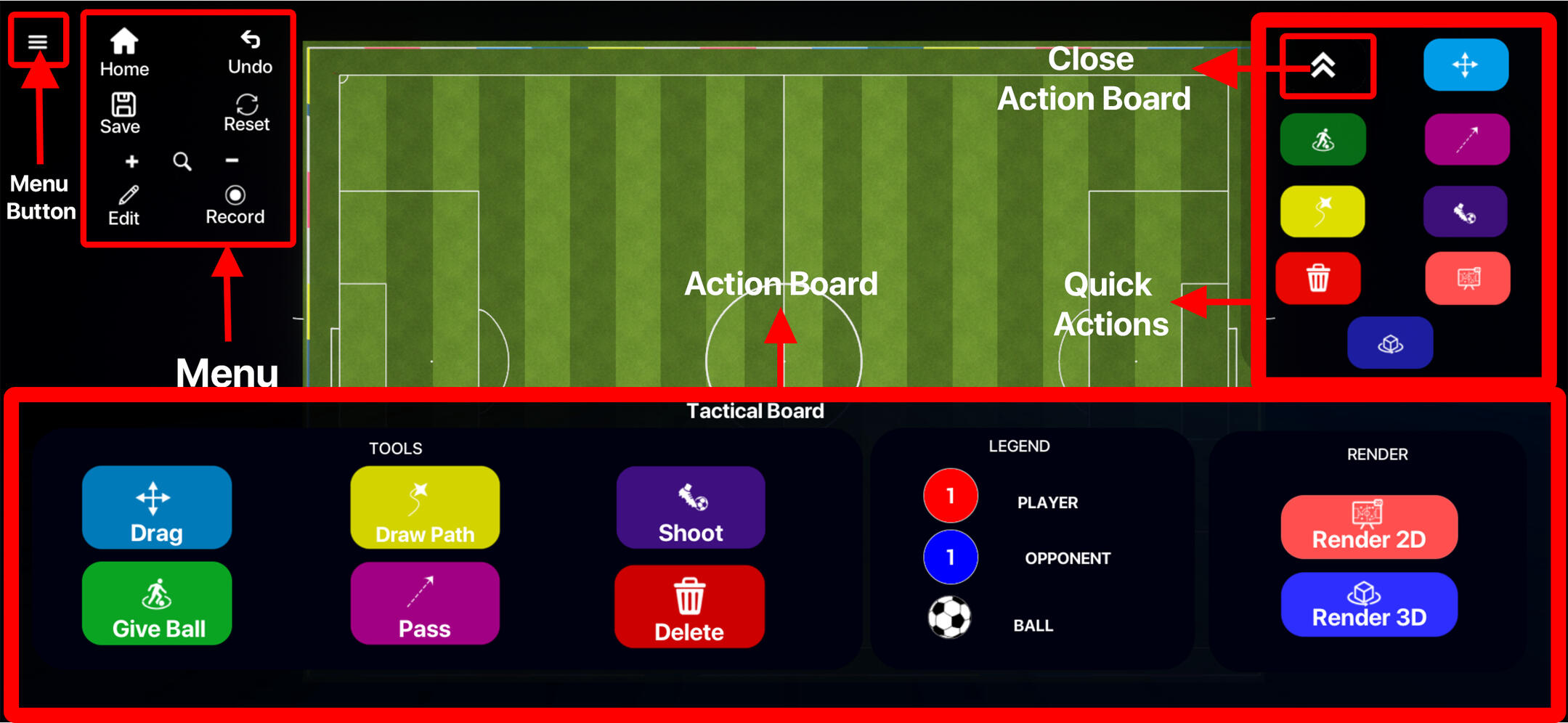
The Menu Button Closes the Menu.
The Close Action Board Button closes the Action Board.
The Action Board contains all the buttons you need to create your tactics.
The Quick Actions Panel give you a quick way to access actions without interrupting your view of the pitch.
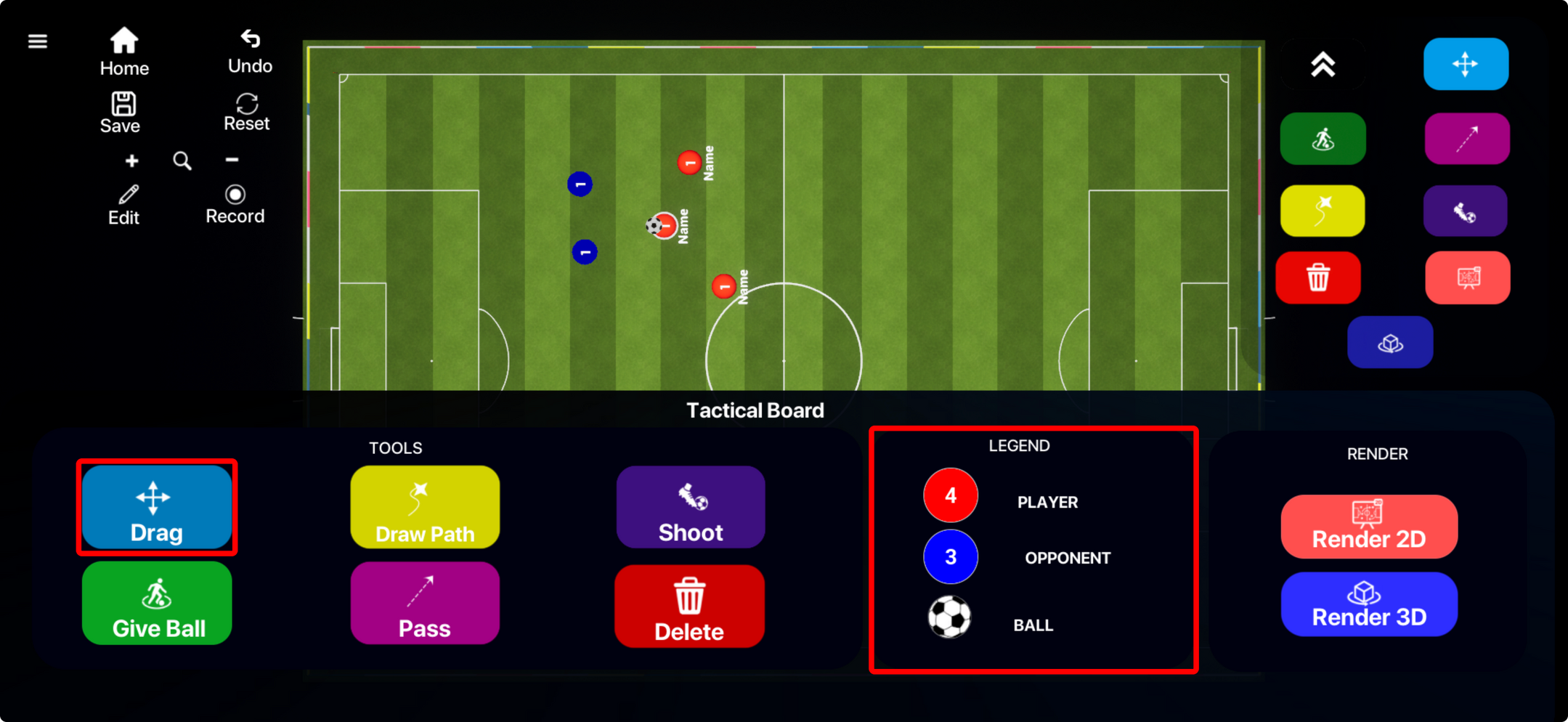
Click on the player and opponent buttons to spawn them
Selected players will have a white ring around them.
Click the drag button then click on the player you want to move and drag them around the pitch
Click on a player to select them then click the Give Ball button to give them the ball
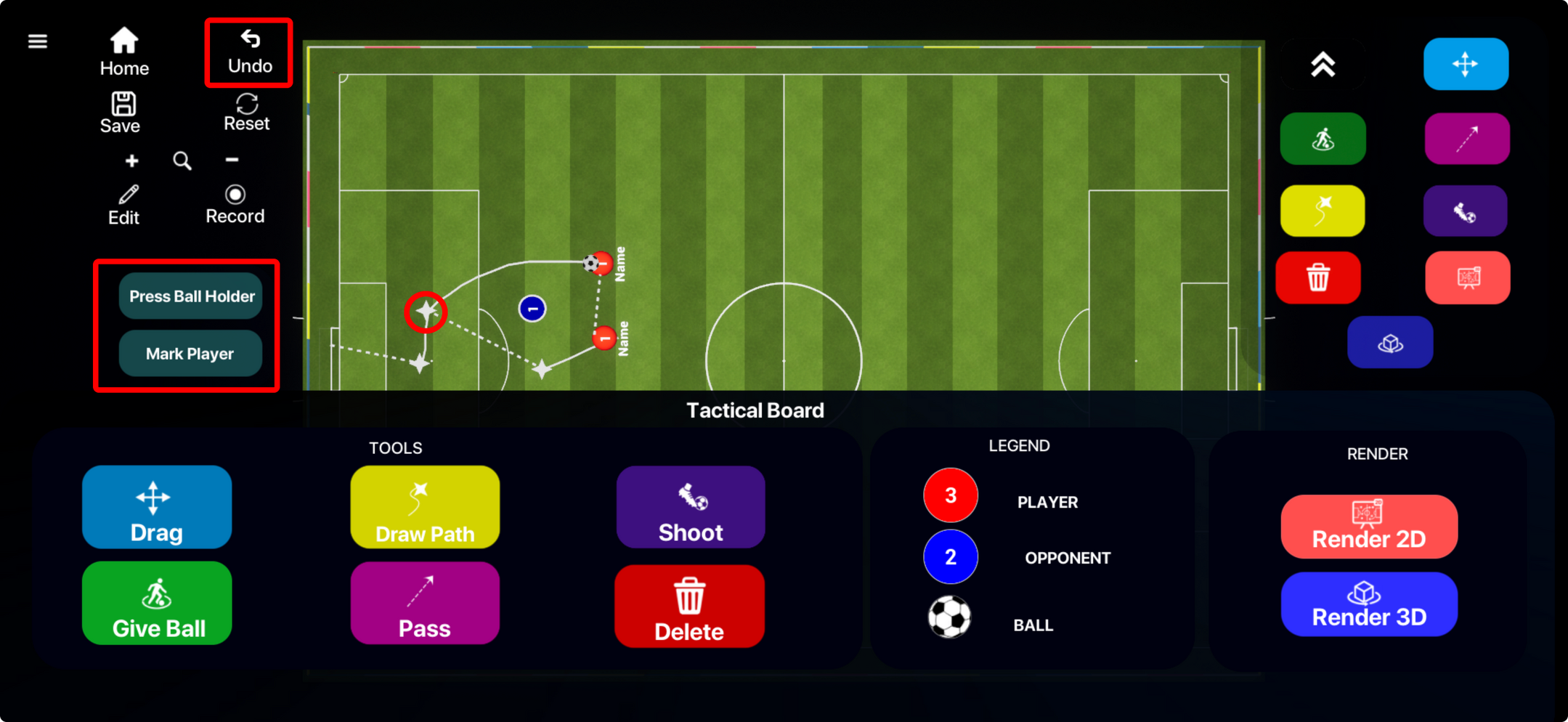
Click the pass button and click on the player you want to pass to.
To draw a run click the draw path button and draw a line from your selected player to where you want them to go.
To Shoot click the shoot button then click on the top of the goal.
At the end of all the run paths there's a star shape. Click on that shape when passing or drawing additional runs.
Defender has two options mark player and press ball holder. When you choose mark player you need to click on the player the defender will mark.
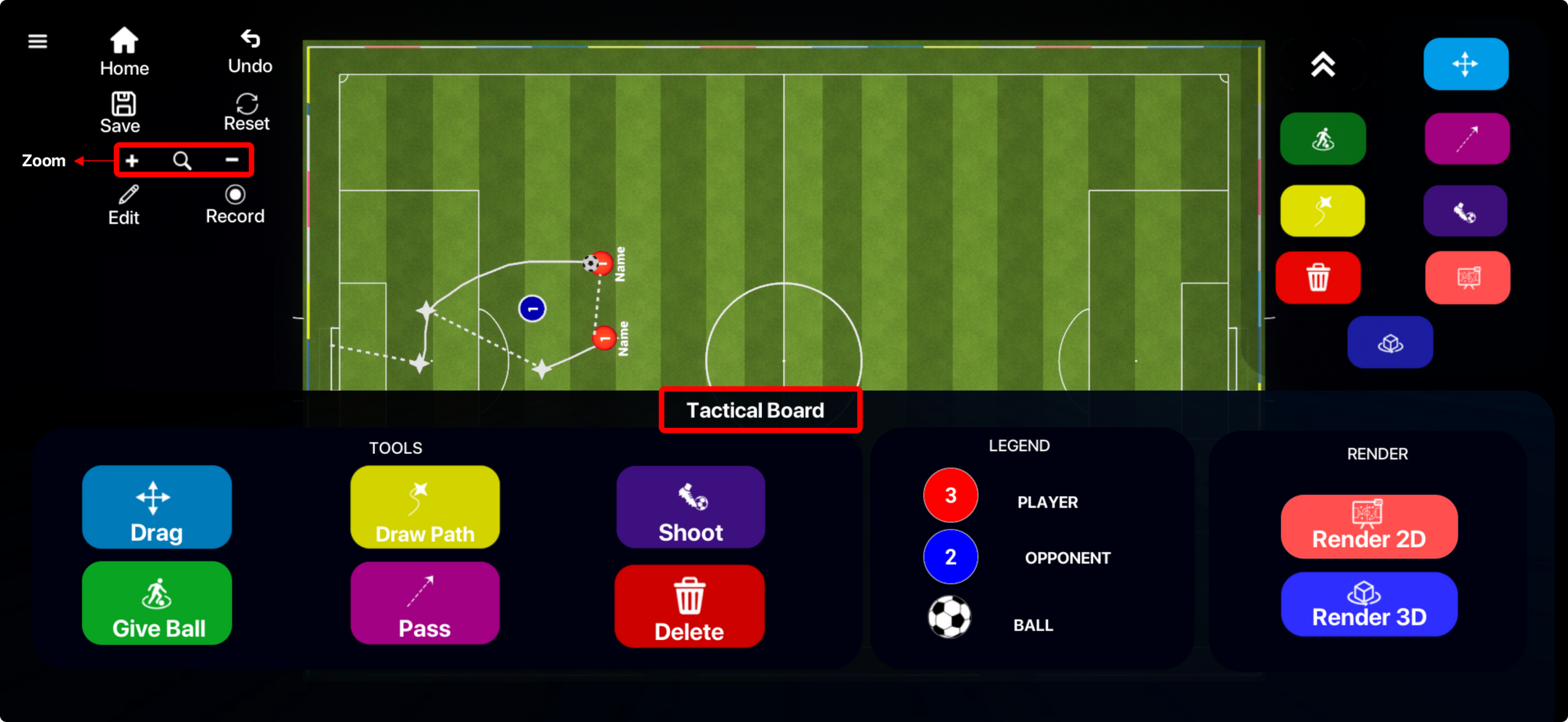
Zoom in and out of the pitch to get a closer view to draw your runs better. Hold and move the pitch to move around when you are zoomed in. Zoom out fully before you render in 2D
Select a player then click on edit to change their name and number.
Click record then render if you want to save your play to your camera roll.
Click on the Tactical Board name to change the name of the board then click save to save it to your list of tactics.